

Yealink Voicemail Options and Quick Reference Guide
Below are the instructions for setting up your voicemail box. Please note, voicemail will also be delivered to your email as an audio file.
- Press the 'MESSAGE' button on your phone:
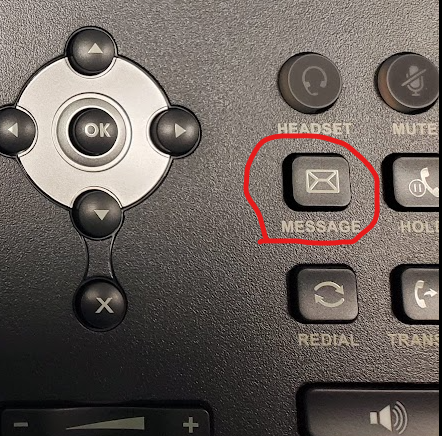
- You will be prompted to enter in your passcode, which is defaulted to the last 4-digits of your extension the 1st time you try to log in. You must change the passcode to something other than the last 4-digits of your extension. Otherwise you will be prompted to change your passcode each time to access your voicemail. Once entered, you will then be prompted to record your name.
- Once you are in the voicemail system, press 0 (zero) for Mailbox Options
- Press '1' to set up your Unavailable Message.
- Once you are done with your Unavailable Message, press * to return to the main menu or hang up.
There are a slew of other options that you are welcome to explore, such as the screen background and ringtones. You can also access the new Directory button on your phone to access the various phonebooks. Extensions and dialing are the same as previous systems, with the only caveat being the voicemail options:
- 5 - Repeat message
- 7 - Delete Message
- 8 - Forward Message
- 9 - Save Message

