

MyQ Printing Solution Guide (Lawton)
All Lawton staff members are assigned a printer pin number. This pin is used at any of our Kyocera printers. Once used the printer screen will look like the image below.
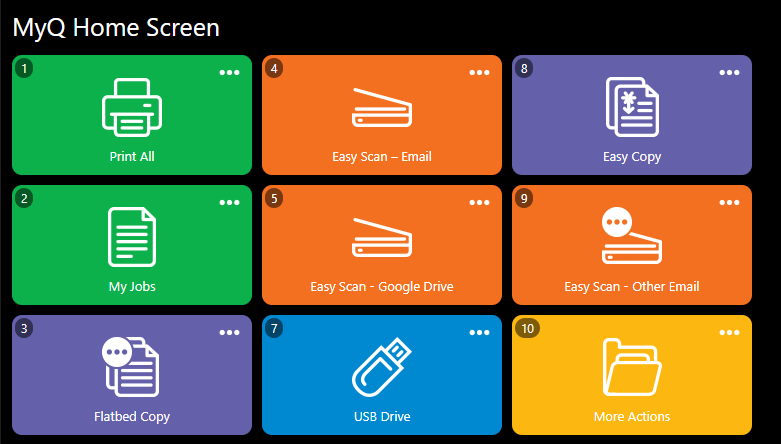
- Easy Scan - Google Drive option allows you to scan directly to your Google Drive. The first time you use this feature you will receive an email that looks like this:
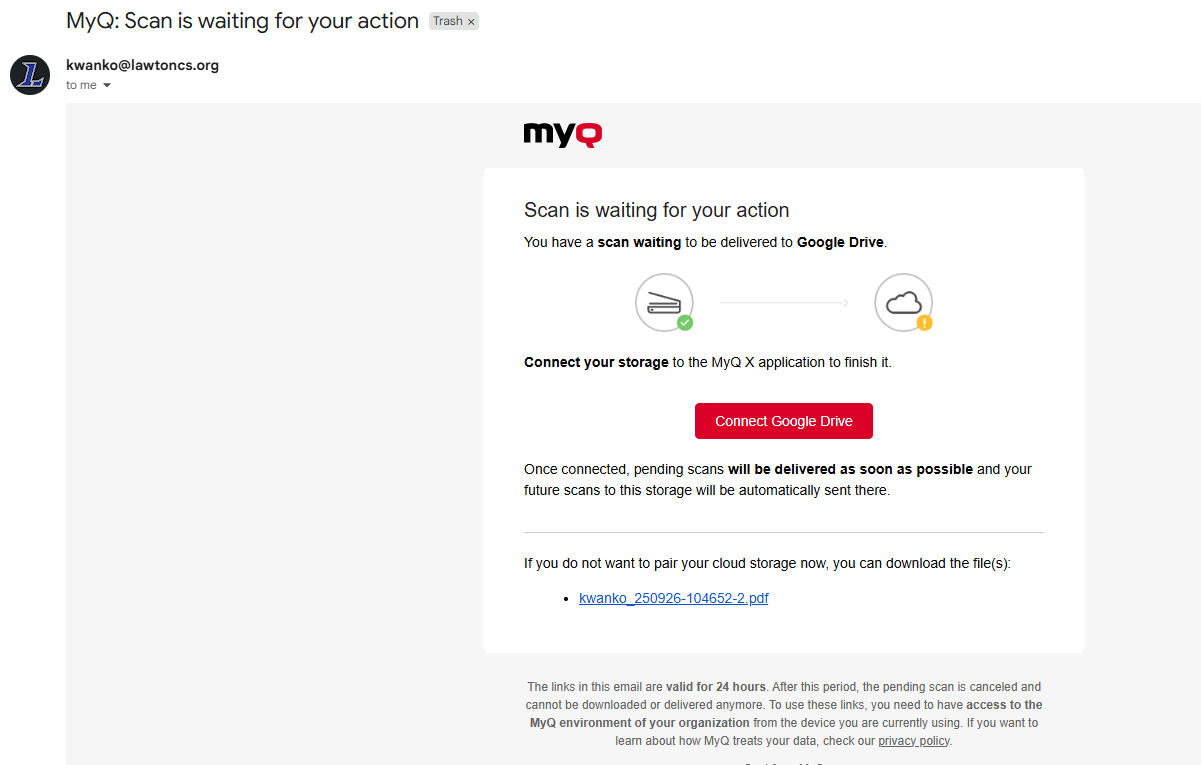
In red, you will need to click "Connect Google Drive" and follow the short instructions. After that all future scans using this feature will go directly to your Google Drive.
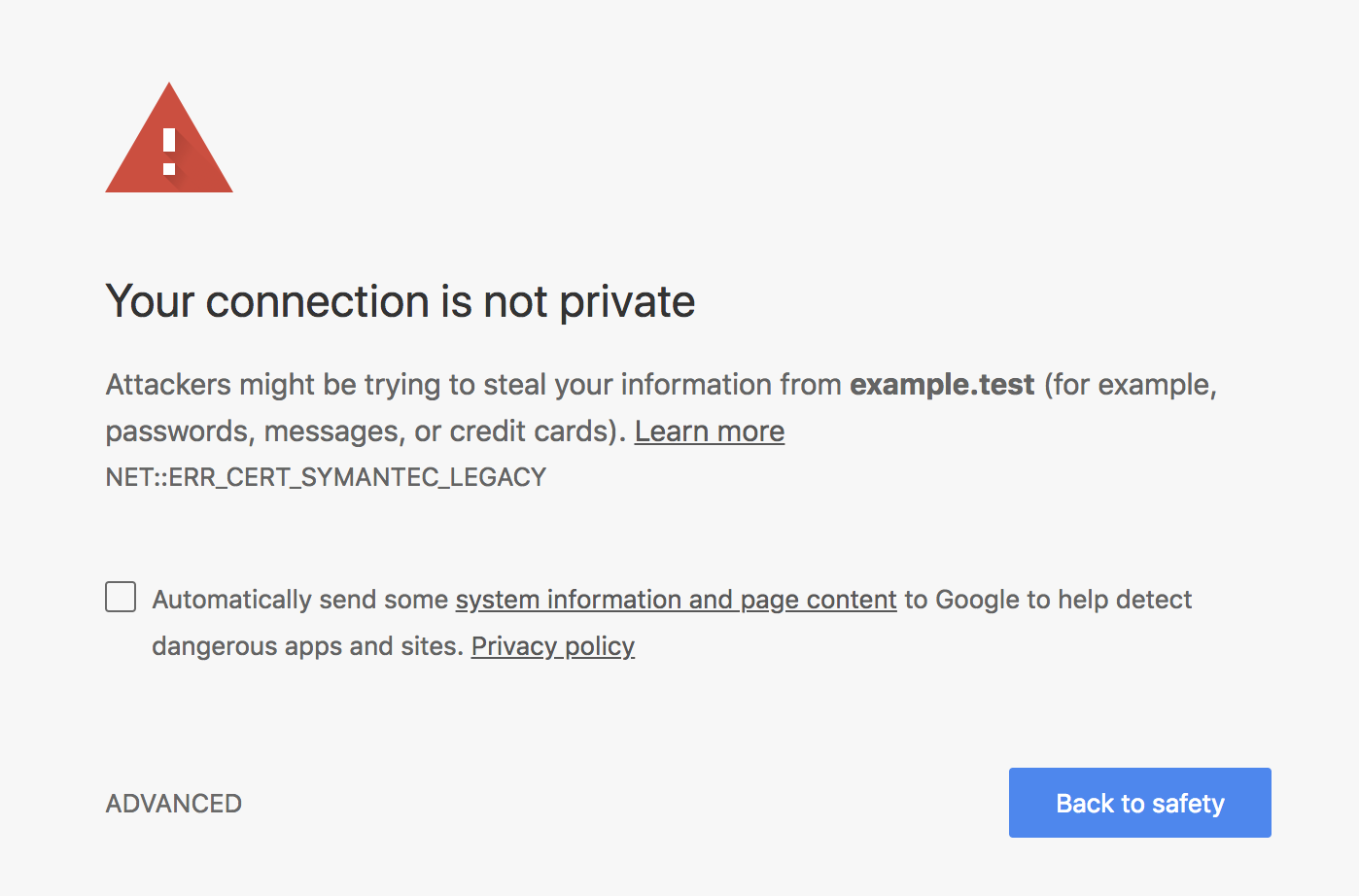
You will likely see the above image after clicking "Connect Google Drive". You will want to click where it says "Advanced" and then click "Continue to page" or something similar. Google sometimes changes the wording on this page.
- If you email attachments to [email protected] your attachments will automatically appear under the queue in your account. This is especially helpful for anyone working from home who doesn't wish to print at home. It is also useful for anyone who wishes to print from their cell phone or their personal laptop (not recommended). These attachments must be sent from your @lawtoncs.org account. Otherwise it will not be added to your queue.
- You should see a new printer installed on your computer called LCS_Print. This is the only printer you need to use with the MFPs. You are able to release your print jobs from any MFP in the district.
- Print jobs are no longer automatically printed. You will need to use your pin number at the printer to release them. This is to prevent paper waste but mostly to prevent confidential information sitting in the print tray.
- Pin numbers. Print pin numbers are originally set the same as phone pin numbers. We want everyone to have one less thing to remember. Pin numbers have to be 4 digits or more and can't be the same as your phone extension. They also have to be unique. So first come, first serve for pin numbers.
People without a phone will receive an automated email from MyQ with your random pin number.

